
Sound Marine Service & Repair
Servicing Puget Sound & surrounding areas

Employee | 22511 Office Infomation | How To
Index
Emailing an Invoice/Pay Link: Some payees indicate they never receive an invoice (usually Gmail accounts). We have verified all settings on the website/invoicing are accurate. Best practice: (recommended order)
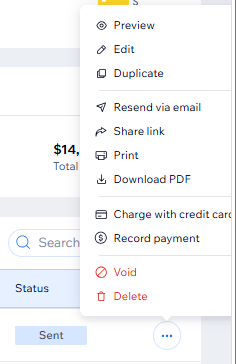
Share Invoice/Pay Link: To the right of the invoice, click three dots, click Share Link, Copy Link, text or email directly to the customer so they can access their invoice
Customer should add Sound Marine as Non-Spam (Gmail): Open Gmail, click the gear in the upper-right, click See all settings, Select Filters and Blocked Addresses, click Create a new filter. You'll see a form with fields such as From, To, Subject, etc In the From field, enter: service@soundmarineservice.com. Then click Create filter. On the next screen, check: Never send it to Spam. Then click Create filter.
Repeat for: mail@wixinvoices.com
If the customer needs a COPY of an invoice: Go to the invoice, on the right, click the three dots, "Download PDF". Send that to the customer. Downfall: It won't include a link to make a payment unless you also send the Pay Link, which is the full invoice.
Service fees: All invoices will be charged a 3% service fee, which we are passing on from the payment service provider, i.e., credit card, etc.
If the payment service does not charge a service fee, this % should be removed from the invoice; there is no need to pass on this charge, i.e., Zelle, Cash, Check.
Resellers: Resellers do not get charged the local tax. Note: Must have a current reseller permit on file.
See instructions on how to set up a reseller so it never comes up with taxes.
Service fee will be charged if applicable (see Service fees:)
If the payment service does not charge a service fee, this % should be removed from the invoice; there is no need to pass on this charge i.e., Zelle, Cash, Check.
Invoices are payable upon receipt: Automated messages will be sent after 24-hours, and on a regular basis, if an invoice is not paid i.e. 24 hours, and so on.
Charge manually with Credit Card
-
Log in to WIX (Studio or Dashboard)
-
On the left, click Getting Paid to expand the menu, and click Invoices
-
Locate the invoice you want to pay
-
Click the three dots on the far right for menu options
-
Click Charge with Credit Card
NOTE: Charge is for the full amount, will need to adjust the invoice if the amount is different i.e., make two invoices
-
Manually enter information
-
Click Charge $XX

Invoicing a customer
-
On the left, click Invoices
-
Expand Getting Paid
-
Click Invoices
-
Upper Right, click Create New
-
Click Invoices
-
Note: Issue date is the same as the due date
-
Remit information, notes, and terms are auto-filled out. Can be edited from Settings
-
-
Under Customer, click drop down arrow
-
Choose Customer or click New Customer
-
Note: If a new customer
-
Enter name, email, phone, address, assignee is Service - should have at least email or phone to send invoice to
-
-
Under Invoice Title (optional, but good to have for reference): Enter the date, what boat you worked on i.e., 260402 2505 Bayliner (optional:260402 service date YY/MM/DD, boat year type)
-
Under Product or Service, choose an existing service, or Add New
-
Note: Bill rate for customers is, as a standard, $200/hour
-
If you have special rates for customers, i.e., Bjornson, choose the service that has the special rate. It will automatically appear if you choose them as a customer
-
If a reseller, you can set up the customer in Settings > Tax Exemptions.
-
-
Description will remain and is specific to that service, and should be general, applicable to all these service types
-
Add Line Item if needed, repeat Add Quantity, Price if needed updated, +Add Tax (Des Moines (10.3%))
-
If the customer is paying via Credit Card, also check the box for an ADDITIONAL tax for Credit Card Fee (3%)
-
Note: Can create new tax if needed, see Invoices: Up[dating/Adding Tax Rate, receipts, etc.
-
Verifying payment has been made
Zelle, Venmo, Bank Transfers: To verify payment, you will need to log into the bank account connected (4/2026 Wells Fargo) to confirm payment has been received.
You will also have to manually mark these invoices in WIX as paid (see Manually Mark Invoice as Paid)
WIX Payments: To verify that payment has been made
-
Log into WIX (Studio or Dashboard)
-
On the left, click Getting Paid to expand menu, click Invoices
-
Along the top you will see an Overview which shows Invoices Outstanding, Overdue, Total Paid.
-
On the right you will see all invoices generaged and pay status
If it is showing as not paid, you should confirm if payment was made by outside WIX method, if so see Manually Mark Invoice as Paid section.


Manually Mark Invoice as Paid
-
Log in to WIX (Studio or Dashboard)
-
On the left, click Getting Paid to expand the menu, and click Invoices
-
Locate the invoice you want to verify
-
Click the three dots on the far right for menu options
-
Click Record payment
Invoices: Updating/Adding Tax Rate, recepits, etc
In Wix Studio
Along left side, click Settings
In the right panel, scroll to Tas Settings, Tax Groups or Custom Tax Exemptions
Editing an Invoice
In WIX Studio
Click on Settings on the left
Click on Getting Paid, then Invoices
Locate the invoice you need to edit
On the right, click on the three dots and choose Edit
Edit invoice and resend to customer if needed.
Resellers: Tax Exemptions or Groups
In Wix Studio
Along left side, click Settings
In the right panel, scroll to Tas Settings, Tax Groups or Custom Tax Exemptions
For Resellers
Must have a current Reseller Permit on file.
Click Custom Tax Exemptions
Add them to the list + Add customer - they should already be set up as a customer under invoicing.
Thank you for choosing us! Your feedback helps our business and helps other customers find us. If you have a moment, we’d greatly appreciate a review on any of these platforms.
⭐ Google Review
On your phone:
LINK: https://g.page/r/CeVHgtRAEvKdEBM/review
-
Open the Google Maps app.
-
Search for our business name.
-
Select our business listing.
-
Scroll down to Reviews.
-
Tap Write a review.
-
Select your star rating and add your comments.
-
Tap Post.
On a computer:
-
Go to Google Maps.
-
Search for our business.
-
Click Write a review.
-
Choose your star rating and enter your comments.
-
Click Post.
🍎 Apple Maps Review
On your iPhone:
LINK:
-
Open the Apple Maps app.
-
Search for our business.
-
Select our business from the results.
-
Look for the Ratings & Photos or Rate This Place section.
-
Select your rating and follow the prompts to submit your feedback.
Apple's review/rating options can vary depending on your location and Apple account settings.
⭐ Yelp Review
On your phone or computer:
LINK: https://www.yelp.com/biz/sound-marine-service-des-moines
-
Go to Yelp.
-
Search for our business.
-
Select our business listing.
-
Click or tap Write a Review.
-
Choose your star rating and write your review.
-
Submit your review.
Thank You!
We truly appreciate you taking the time to share your experience. Your review means a lot to our business!
Thank you for supporting our small business!


WIX Studio Invoice Download:
Wix Studio App Download
Download app to invoice, etc.

WIX Payments | Service Fees (4/2026)
Wix Payments: Service Fees: A service fee is a fee charged for transactions processed through Wix Payments. Similar to any other payment provider, Wix Payments charges a fee for the processing of funds to and from your account.
Additionally, fees may be levied for refunds and chargebacks. United States.
Credit/Debit Card (excl. American Express): 2.9% of the transaction amount + 0.30 USD
Apple Pay (excl. American Express): 2.9% of the transaction amount + 0.30 USD
Google Pay (excl. American Express): 2.9% of the transaction amount + 0.30 USD
American Express Credit Card (incl. use with Apple Pay & Google Pay): 3.7% of the transaction amount + 0.30 USD
PayPal: 3.49% of the transaction amount + 0.49 USDPay Later: 4.99% of the transaction amount + 0.49 USD
Venmo: 3.49% of the transaction amount + 0.49 USD
Wix Payments Point of Sale (POS): 2.6% of the transaction amount + 0 USD
Tap to Pay: 2.6% of the transaction amount + 0.20 USD
Wix Payments Manual Card Entry: 3.5% of the transaction amount + 0.30 USD
American Express Manual Card Entry: 4.3% of the transaction amount + 0.30 USD
Tap to Pay on mobile: 2.6% of the transaction amount + 0.20 USD
Afterpay: 6% of the transaction amount + 0.30 USD
Affirm: 6% of the transaction amount + 0.30 USDKlarna: 6% of the transaction amount + 0.30 USD
Cross-border fees: 1.5% of the transaction amount + the standard processing fee for a payment method.
Note: Cross-border fees are added in addition to the standard processing fee for a payment method.Multi-currency payment fees: For payments in a currency different from your site’s main currency.
The following fees are charged for each transaction:
Processing fee:
Based on the payment method used (for example, 2.9% + 0.30 USD for Credit/Debit Cards excluding American Express).
Cross-border fee: 1.5% of the transaction amount (if applicable)
Currency conversion fee: 1% of the transaction amount
Note: Processing fee (depending on the payment method) + 1.5% of the transaction amount (if applicable) + 1% of the transaction amount.
These fees are charged in addition to each other and are combined as a single “Fees” amount in your payment details.
Refunded payments fees: For refunded payments, standard Wix Payments processing fees apply. For example, if you issue a $100 refund to your customer, the original processing fee of $2.90 (2.9%) + $0.30 for that customer's purchase will not be paid back to your Wix Payments account.
No additional refund fees will be charged.Chargeback fees (Wix Payments): If you receive a chargeback in your Wix Payments account, you may incur a chargeback fee. E
xceptions may apply.
Chargeback fees are as follows:Wix Payments (excl. PayPal): 15 USDPayPal with Wix Payments: 20 USDEU Countries
Internet @22511 (Last Update: 4/11/26)
SoundMarineService | SMSBoats2026@
